¶ Item Card Report
¶ Usage
The user has the necessary permissions to access the item card report screen.
The items are defined in the system to be searched and reported on.
The item code and warehouse are specified before the report is displayed.
¶ Prerequisites
- The user has the necessary permissions.
- Items exist and are defined in the system.
- Item code and warehouse are identified before running the report.
¶ Filters / Criteria
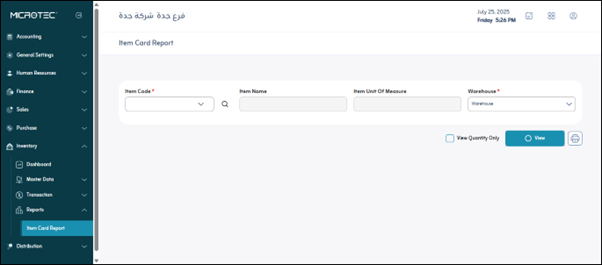
- Item Code*: This field is mandatory (*). Enter the unique identification code for the item whose card you wish to view. You can often search for the item here or select it from a drop-down list.
- Item Name: This field usually appears automatically after entering the “Item Code” and displays the full name of the item to ensure you have selected the correct item.
- Item Unit of Measure: The basic unit of measure for the item is displayed here (e.g., piece, kilogram, meter). This helps you understand the quantities displayed in the report.
- Warehouse Name*: This field is mandatory (*). Select the specific store or warehouse where you wish to track the item’s movement. If the item is located in multiple stores, you will need to run the report for each store separately, or the system may offer the “All Warehouses” option.
¶ Actions
- Show quantity only: When this option is selected, the report will display quantities only without additional details about the item’s value or other financial details. This is useful if you want to focus only on quantity movements.
- Show: After selecting all required fields and options, click “Show” to generate and display the report on the screen.
- Print: This button allows you to print the displayed report directly on paper, making it easier to keep a hard copy or share it.