¶ Purchase Invoice
¶ Usage
The Purchase Invoice screen is used to record purchases from Vendors.
It is an essential step for adding items to inventory and updating accounts receivable for Vendors.
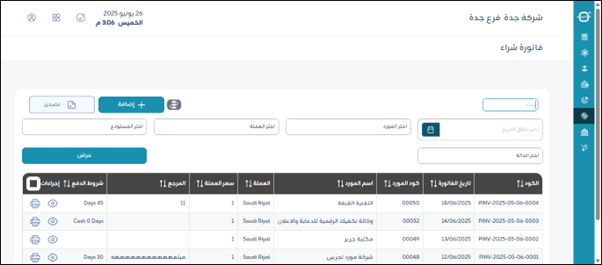
Upon logging in, you’ll find all the purchase invoices previously defined in the system.
The user can do the following:
- Click “Export” to download a PDF or Excel file to the user’s device containing the purchase invoices registered in the system.
- View a specific purchase invoice by clicking on the “Eye” icon for the purchase invoice.
- Print a purchase invoice from the system by clicking on the “Print” icon.
Note: The user can search for one of the purchase invoices defined in the system using the search bar at the top to facilitate and speed up the process, then click the “View” button.
Add a new purchase invoice to the system by clicking the “Add” button.
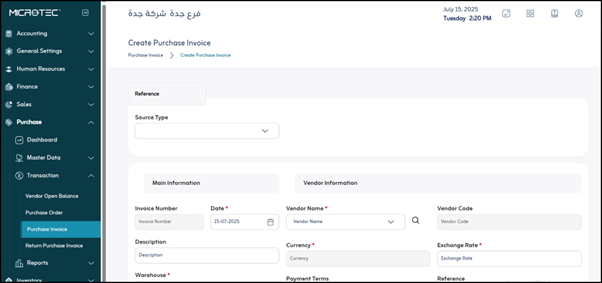
¶ Reference
The user selects the reference for the purchase invoice.
Either select a Purchase Order predefined in the system on the “Purchase Order” screen to create a purchase invoice for it,
or select “Direct”, which creates the purchase invoice directly without using a previous reference.
¶ Key Information
- Invoice Number: This number is usually automatically generated by the system to serve as a unique identifier for each purchase invoice.
- Date: This field is mandatory. It is used to specify the date the purchase invoice was issued. This date is important for correct inventory and accounting updates.
- Description: This optional field is used to add any notes or general description related to this purchase invoice, such as the nature or purpose of the purchases.
- Warehouse: This field is mandatory. It is used to specify the warehouse or store to which the purchased items will be added.
¶ Vendor Data
- Vendor Name: This field is mandatory. It is used to select the Vendor from whom the purchase was made. When clicked, a list of Vendors registered in the system will appear.
- Vendor Code: This code is automatically displayed once the Vendor name is selected. It is the Vendor’s unique identifier in the system.
- Currency: This field is mandatory. Used to specify the currency in which the invoice for purchases from the Vendor was issued, which is Saudi Riyals.
- Exchange Rate: This field is mandatory if the invoice currency differs from the system’s base local currency. The foreign currency conversion rate is entered into the local currency on the invoice date.
- Payment Terms: This field is used to specify the payment terms agreed upon with the Vendor for this invoice, such as “Cash on Delivery,” “Net 30 Days,” “Cash Discount,” etc.
¶ Invoice Items
This section is the main table where details of purchased items are entered.
- Add Line: This button is used to add a new line in the Invoice Items table to enter details for another item.
- Barcode: Used to enter or scan the item’s barcode to expedite the entry process.
- Item Code: The unique identifier for the item (item) in the system.
- Item Description: The name and description of the purchased item.
- Unit of Measure: The unit of measure in which the item is purchased (e.g., piece, carton, kg).
- Quantity: The number of units of this item purchased.
- Cost: The purchase price of one unit of the item before any discounts or taxes.
- Subtotal: Total cost for the specified quantity of the item (Quantity × Cost).
- Discount: The discount percentage applied to the item (if applicable).
- Discount Amount: The discount value in currency on the item (Subtotal × Discount Percentage).
- Net Cost: The price of the item after the discount amount has been deducted (Subtotal - Discount Amount).
- Total After Discount: The total value of the item after the discount has been applied.
- VAT: The tax percentage applied to the item.
- VAT Amount: The tax amount on the item (Net Cost × Tax Percentage).
- Grand Total: The final total for a single item after the discount and tax have been applied.
- Tracking: This field may indicate additional tracking information such as the batch number or expiration date if the item requires tracking.
- Actions: Typically includes buttons to edit or delete the line (item) from the invoice.
¶ Invoice Summary
This section displays an accounting summary of the entire invoice:
- Number of Items: The total number of different items included in the invoice lines.
- Total: The total cost of all items before any discounts or taxes are applied.
- Total after Discount: The total cost of all items after applying the total discounts.
- Total Quantity: The total number of units of all items purchased.
- Discount: The total amount of discounts applied to the entire invoice.
- VAT Amount: The total amount of taxes calculated on the entire invoice.
- Total after Tax: The final total amount of the invoice after applying all discounts and taxes, which is the amount due to the Vendor.
- Save: After entering the previous fields, the user clicks “Save” to save the purchase invoice.