¶ Purchase Order
¶ Usage
This screen is used to create, track, and manage purchase orders issued to Vendors.
A purchase order is a legal document issued by a buyer (your company) to a seller (Vendor), specifying the types, quantities, and prices of products or services agreed upon for the purchase order.
It is considered a binding offer once accepted by the seller.
¶ Prerequisites
- The user must have permission to access and create Purchase Orders.
- A sequence must be configured to enable automatic Purchase Order code generation.
- Vendor and item master data must be pre-defined in the system.
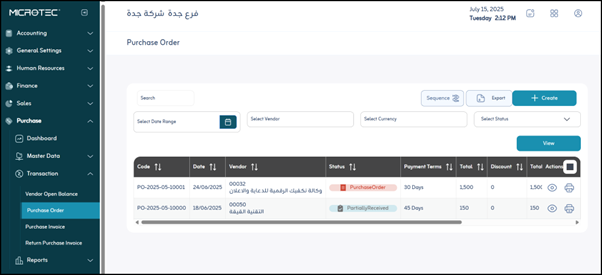
Upon logging in, you’ll find all purchase orders previously defined in the system. The user can do the following:
- Click “Export” to download a PDF or Excel file to the user’s device containing the purchase orders registered in the system.
- View a specific purchase order by clicking on the “Eye” icon for the purchase order.
- Print a purchase order from the system by clicking on the “Print” icon.
Note: The user can search for a purchase order defined in the system using the search bar at the top to facilitate and speed up the process.
Add a new purchase order to the system by clicking the “Add” button.
¶ First: Main Information
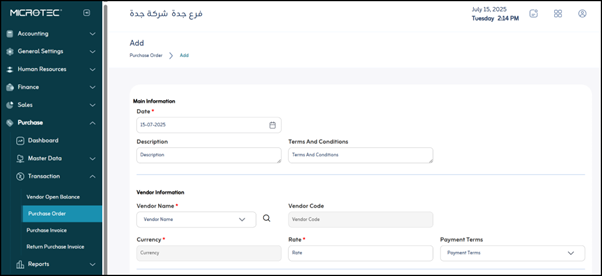
- Date: The date the purchase order was issued. (Mandatory)
- Description: General notes or a brief description of the entire purchase order.
- Terms and Conditions: A text containing the specific terms and conditions agreed upon for this purchase.
¶ Second: Vendor Information
- Vendor Name*: The name of the company or entity from which the purchase will be made. (Mandatory)
- Vendor Code: The unique identification code for the Vendor in the system.
- Currency: The currency that will be used in all financial transactions related to the purchase order. (Mandatory)
- Price: The estimated or final total for the purchase order (may change after adding items). (Mandatory)
- Payment Terms (Cash - 15 days - 30 days - 45 days, etc.): The method and time period specified for paying the Vendor.
- Attachments: To upload and attach additional files related to the purchase order.
¶ Third: Purchase Order Item Details
(Add Line) – A button to add a new item (new row) to the list of required items.
- Barcode: The item’s barcode for quick identification.
- Item Code: The unique identification code for the item or service within the company’s inventory system.
- Description: A detailed description of the item or service ordered.
- Unit: The unit used to measure the quantity (e.g., piece, kg, liter).
- Quantity: The number of items ordered for this item/service.
- Cost: The unit price of the item/service before discounts and taxes.
- Subtotal: The total cost of this item (quantity × cost) before discounts and taxes.
- Discount: The discount percentage applied to this item.
- Discount Amount: The cash value of the discount calculated for this item.
- Net Cost: The amount of the item after the discount is applied.
- Total After Discount: The total value of the item after the discount and before adding tax.
- VAT: The tax percentage applied to this item.
- VAT Amount: The cash value of the tax calculated for this item.
- Grand Total: The final value of the item after adding tax.
- Actions: Icons or buttons to perform actions on this item (such as delete or edit).
¶ Fourth: Order Summary (Totals for the entire purchase order)
- Quantity: The total quantity of all items in the purchase order.
- Price: The total sum of all final amounts for the purchase order items (total after discount or grand total).
- Save: After entering the previous fields, the user clicks “Save” to save the purchase order.