¶ Project Invoices
¶ Usage
The “Extract Invoice” (also known as “Progress” or “Partial Invoice”) screen is a specialized tool used in sectors such as contracting or long-term project management.
It is used to issue invoices for completed stages of work within a project, helping to track progress and bill clients periodically.
¶ Display and Search
When you open the “Invoice Extracts” screen, you will find a list of existing extracts or stage invoices, along with filters and action options to manage them efficiently.
Filter Options:
- Search: Search by invoice number, description, or related text.
- Select Date: Filter by the extract issue date.
- Select Client: Filter by the client to whom the project belongs.
- Select Project: Filter by the specific project related to the extract.
- Sequence: Displays the order in which extract invoices appear in the list.
- Export: Export extract invoice data to Excel or PDF for reporting or analysis.
Action Column (Details – Print):
- Details: View all detailed information about the extract, including completed work items and related amounts.
- Print: Print an official copy of the extract invoice.
¶ Fields after Clicking “Add” (Creating a New Extract Invoice)
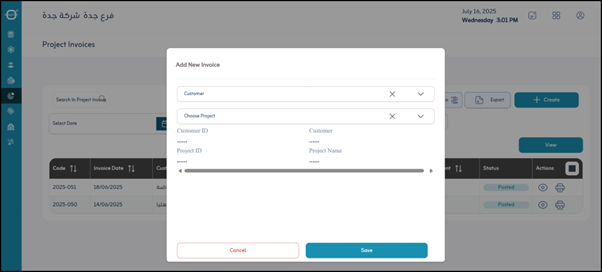
When you click “Add”, a new form opens allowing you to create a project-based extract invoice.
This step begins by identifying the client and project related to the extract.
- Add New Invoice: Title of the process for creating a new extract.
- *Select Client : Mandatory field for choosing the client to whom the extract will be issued. Usually a drop-down list or search field populated from the “Define Clients” screen.
- *Select Project : Mandatory field for selecting the project linked to the extract.
Projects available in this list depend on the chosen client.
(For example: selecting “Company XYZ” will display only projects registered under Company XYZ.) - Save: Click “Save” to save the extract invoice to the system.