¶ Sales Invoice
¶ Usage
The Sales Invoice screen is the core of the sales process in any business system.
An invoice is a formal financial document issued to a customer that specifies the value of goods or services sold, the payment terms, and the total amount due.
This screen enables users to manage existing invoices, create new ones, track payment status, and integrate them with the accounting system.
¶ Prerequisites
- The user must have sufficient privileges to access this screen.
- A numbering sequence must be defined for the Sales Invoice screen to allow adding new invoices.
- Customers and products must be predefined in the system.
- A valid and defined pricing policy must exist for customers.
¶ Search and Management Fields (Before Adding an Invoice)
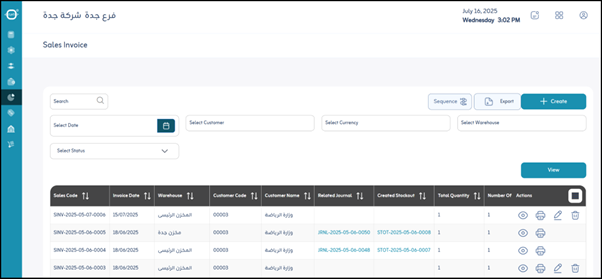
When you open the “Sales Invoice” screen, you’ll see a list of current invoices with options to search, filter, and perform actions:
Filter options:
- Search by Name: Find invoices based on customer name or invoice description.
- Select Date: Filter by the invoice issue date.
- Select Customer: Filter by a specific customer.
- Select Currency: Filter invoices by currency type.
- Select Inventory: Filter by warehouse (if defined at the invoice level).
- Select Status: Filter invoices by their status (e.g., Draft, Staging, Partially Paid, Fully Paid, Voided).
- View: Apply filters to display results.
Additional options:
- Export: Export invoice data to Excel or PDF for analysis or reporting.
- Actions:
- Details: View detailed information for a selected invoice.
- Print: Print an official invoice copy (usually PDF).
- Post: Post the invoice to the accounting books, affecting account balances and making it part of official records. (After posting, editing may be restricted.)
- Delete: Delete the invoice record — used with caution, especially for posted invoices.
¶ Fields after Clicking “Add” (New Invoice)
When you click “Add”, a new form opens where you can enter all invoice details, typically grouped into logical sections.
¶ Source Type
- Direct: Invoice created manually.
- Indirect: Invoice generated from another source, such as a Sales Order or Quotation.
- Add Discount: Option to apply an overall discount to the entire invoice rather than individual items.
¶ Master Data
- *Invoice Date : Date the invoice was issued. (Mandatory)
- Due Date: Date by which the customer must make payment.
- Description: Optional text field for general notes or remarks.
- *Warehouse : Warehouse from which the items are issued. (Mandatory for stock tracking)
- Sales Representative: Salesperson responsible for this invoice.
¶ Customer Data
- *Customer Name : The customer to whom the invoice is issued. (Mandatory)
- *Currency : The currency in which the invoice is issued. (Mandatory)
- *Rate : The exchange rate if the invoice currency differs from the system base currency. (Mandatory)
- Payment Terms: Payment conditions agreed upon with the customer (e.g., Immediate Payment, 30 Days Net).
- *Pricing Policy : Pricing policy applied to items in the invoice. (Mandatory)
- Credit Limit: Displays the customer’s credit limit; used for validation.
- Advance Payment Invoice: Indicates whether this invoice represents an advance payment or is linked to one.
¶ Item Data
This section lists the individual products or services included in the invoice. Each line includes:
- Item Code: Identification code for the product/service.
- Item Name: Product/service name or description (auto-filled from item master).
- Unit of Measure: Measurement unit (e.g., Piece, Carton).
- Quantity: Quantity sold.
- Price: Unit price (auto-retrieved from the pricing policy).
- Subtotal: Total before discounts and taxes (Quantity × Price).
- Discount Percentage: Applied percentage discount.
- Discount Amount: Calculated monetary value of the discount.
- Total After Discount: Subtotal after subtracting the discount amount.
- VAT: Applied VAT rate.
- Tax Amount: Total VAT value.
- Grand Total: Total after adding VAT.
- Tracking Type: Specifies tracking method if required (Serial Number, Batch, Expiration Date).
- Tracking Number: Serial or batch number for tracked items.
- Expiration Date: Expiry date if applicable.
- Actions: Buttons such as Delete to remove the line item.
¶ Payment Data
The Payment tab allows recording payments directly during invoice creation or editing.
It may also display previous customer payments available for reconciliation.
- Customer Payments Available for Settlement: Displays any unallocated payments that can be linked to this invoice.
- Payment Code / Payment Date / Payment Amount / Amount Available for Settlement: Payment details.
- Invoice Balance: Remaining unpaid balance.
- Amount Due / Due Date / Balance Due: Displays pending amounts and corresponding due dates.
¶ Invoice Summary
Summarizes all invoice item calculations:
- Quantity: Total quantity of all items.
- Number of Items: Total number of unique items.
- Total: Total price before discounts and taxes.
- Discount Amount: Total discounts applied.
- Total After Discount: Invoice total after discounts, before tax.
- Tax Amount: Total VAT applied.
- Total After Tax: Final payable amount after discounts and taxes.
¶ Actions
- Save: After completing all fields, click “Save” to store the sales invoice in the system.